

Download KT and Start in 3 Minutes
Supports Windows and macOS. Register to start a 3-day free trial.
We detected your system and matched the installer. Click to download directly. Choose another version
Choose Download Version
Windows
RecommendedWindows 10 / 11 (64-bit)
4GB RAM · 500MB free space
View System Requirements
System
Windows 10 / 11 (64-bit)
Hardware
4GB RAM · 500MB free space
macOS
macOS 11 or later
Apple Silicon / Intel both supported
View System Requirements
System
macOS 11 or later
Chip Support
Apple Silicon / Intel both supported
Supported Platforms
Windows and macOS clients are supported.
Trial
Register to start a 3-day free trial.
Core Capabilities
Covers 13+ social platforms, AI multi-model support, automation, and duplicate detection.
From Download to Launch in 4 Steps
Download & Install
Click the buttons above to download the installer for your system, double-click to complete installation
Register Account
After first launch, register a new account using your email
Login & Use
After logging in, start your 3-day free trial with access to all features
Connect Platforms
Link your WhatsApp, Telegram, and other social accounts to start prospecting
Download & Installation FAQ
What if the browser blocks the download?
On first download, Chrome may show “usually not downloaded / make sure you trust”. Follow the 4 steps below to keep the file. The package is safe to use.
Tip: Do not click Delete. The path is ⋯ → Keep → dropdown next to Delete → Keep anyway → Open file.
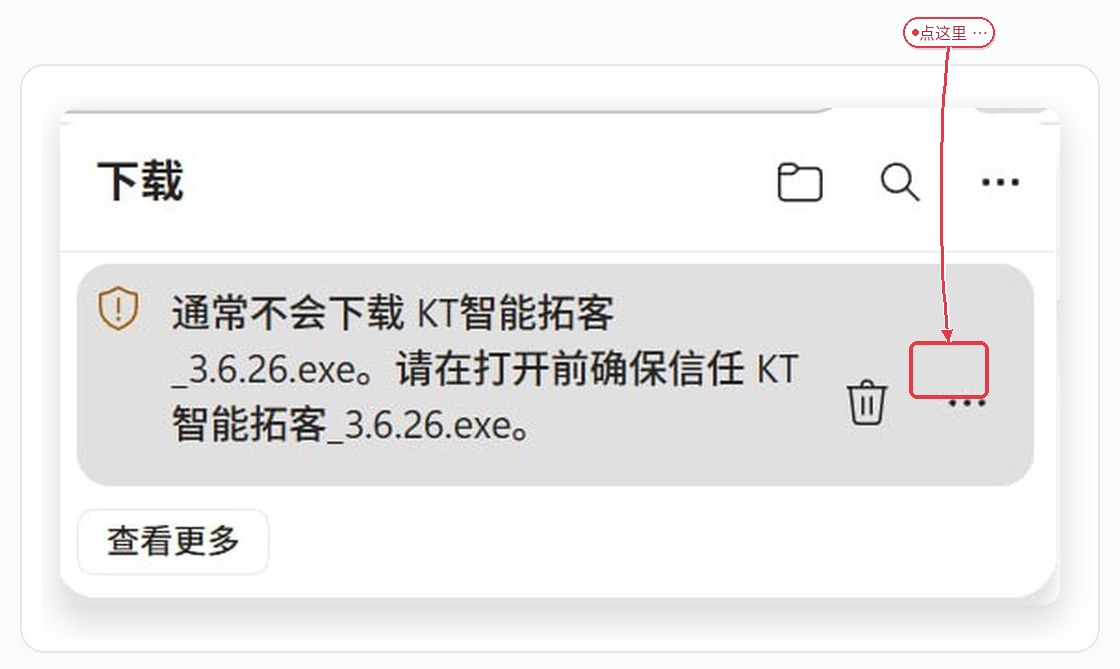
Click ⋯ on the download item
If Chrome shows “usually not downloaded… make sure you trust”, click the ⋯ menu on the right. Do not click delete.
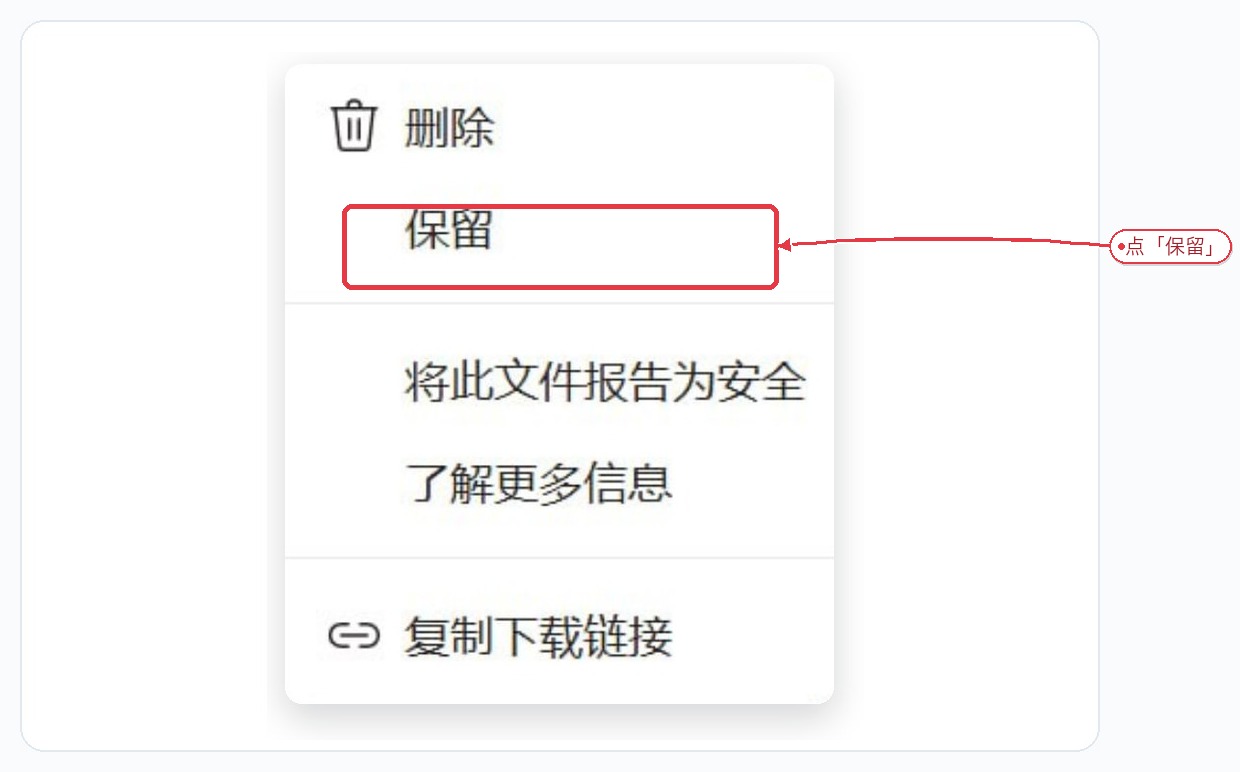
Choose Keep
In the menu, click Keep. Do not choose Delete.
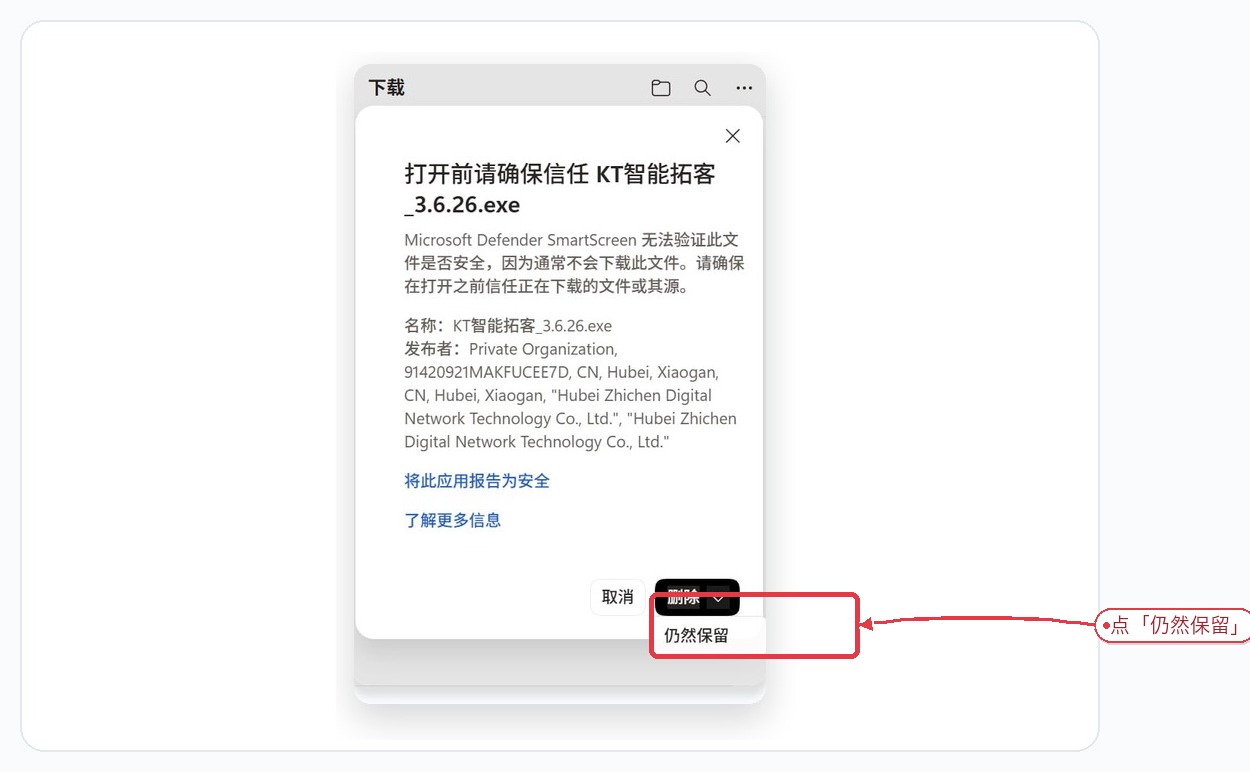
Open the Delete dropdown → Keep anyway
If a trust confirmation appears, click the dropdown next to Delete and choose Keep anyway.
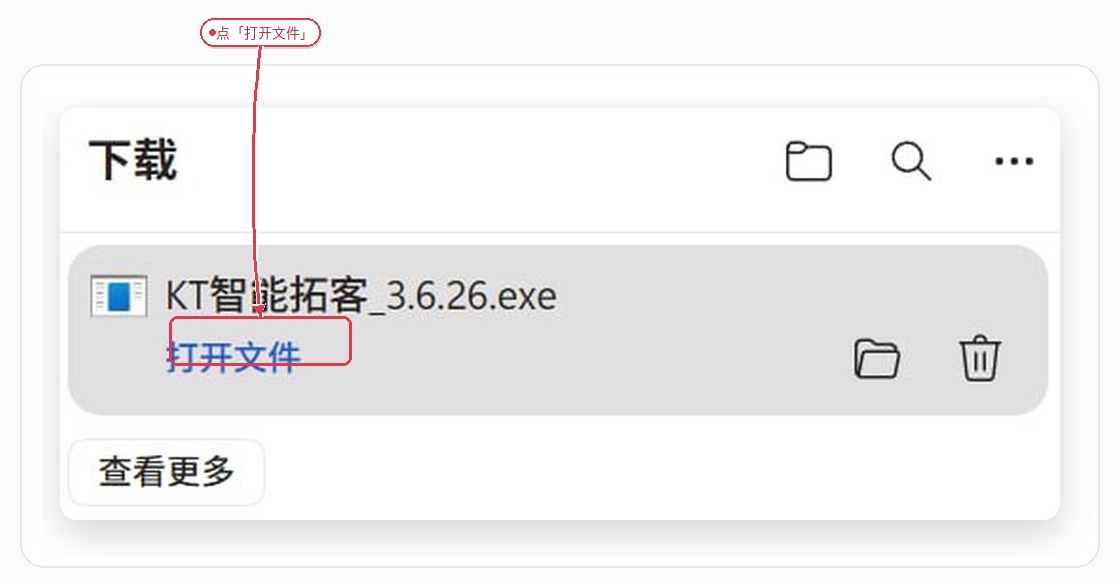
Open file
After the file is kept, click Open file in the download list to start the installer.
How do I install on Windows?
After the installer opens, follow the 4 steps below to finish Windows setup.
Tip: If the browser blocked the download, see the first FAQ item. If you see “Publisher could not be verified,” click Run (see the next FAQ). Prefer install for all users.
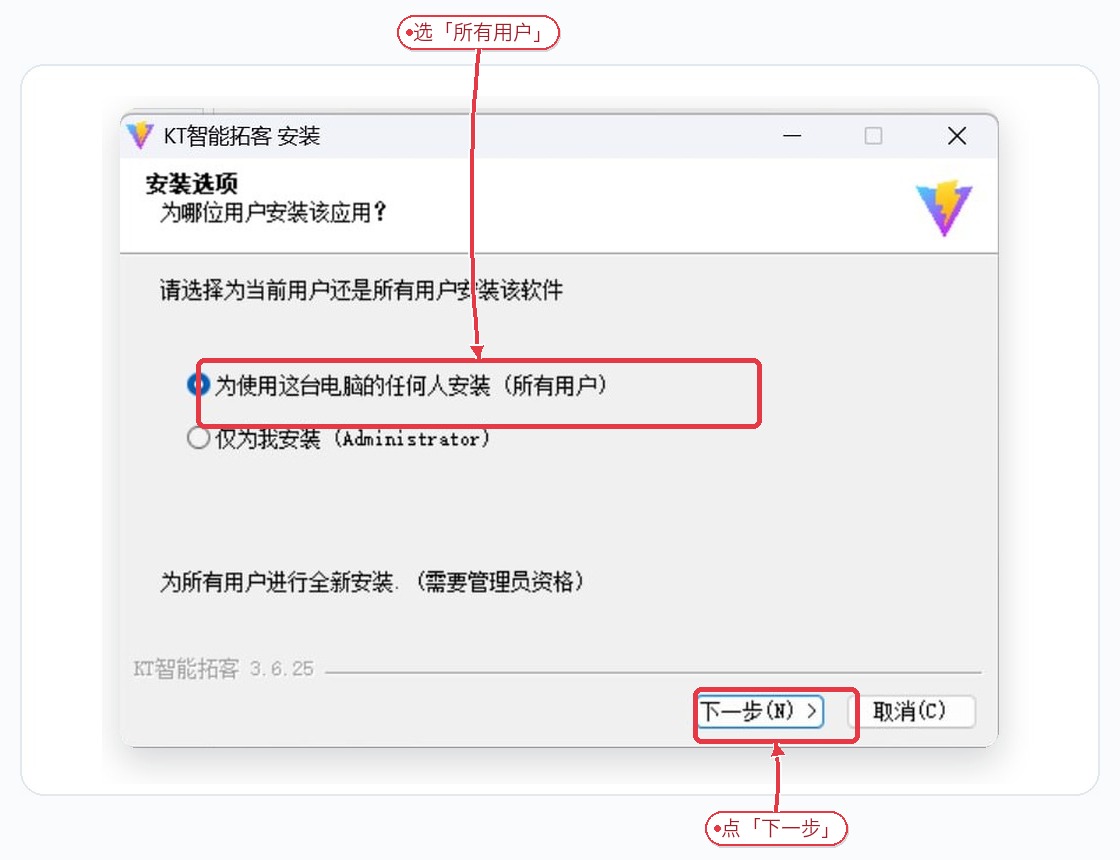
Choose install scope
Select “Install for anyone who uses this computer (all users)”, then Next. Or choose Only for me for a personal install.
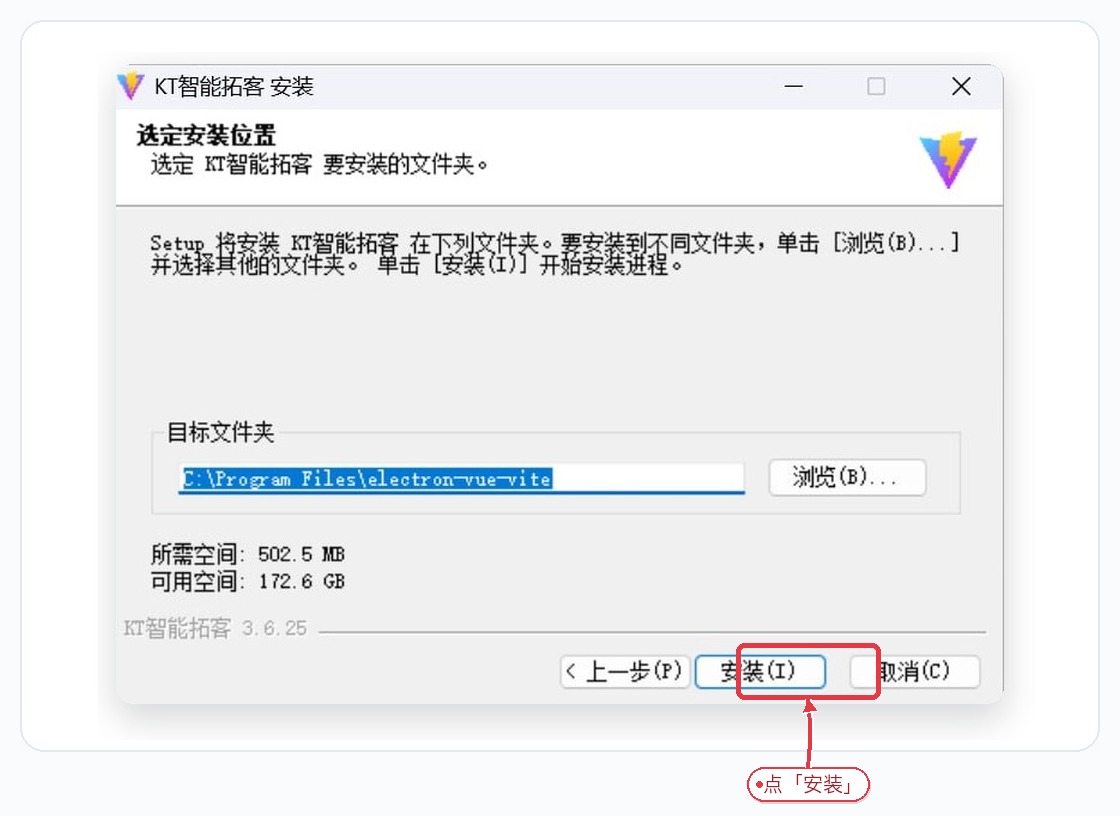
Confirm install location
Default Program Files path is fine. Click Browse to change, then Install.
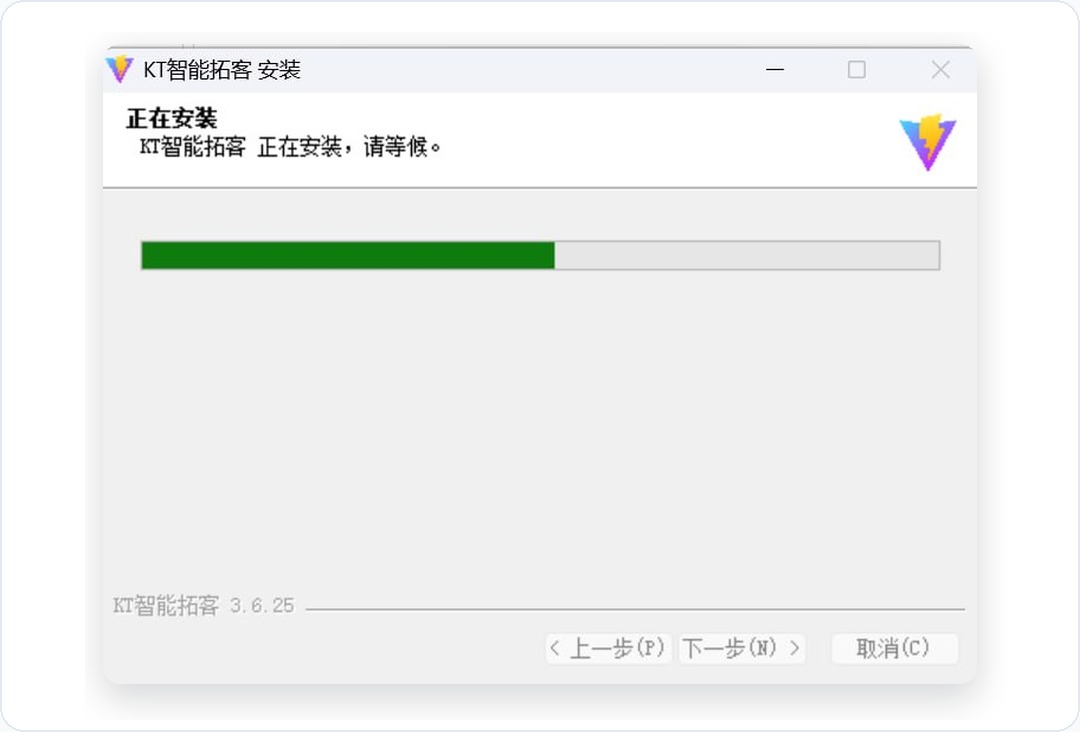
Wait for installation
Wait for the progress bar. Do not close the window.
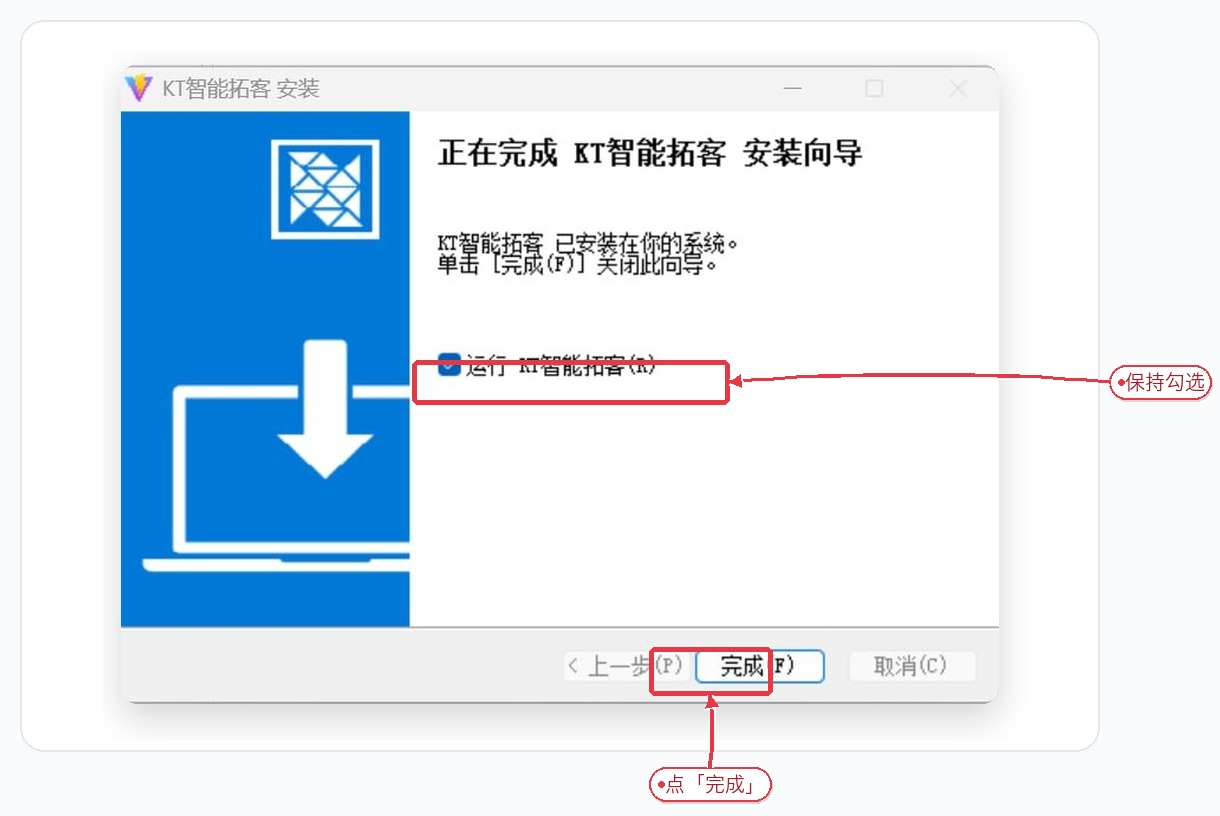
Finish and launch
On the completion screen, keep Run KT checked and click Finish.
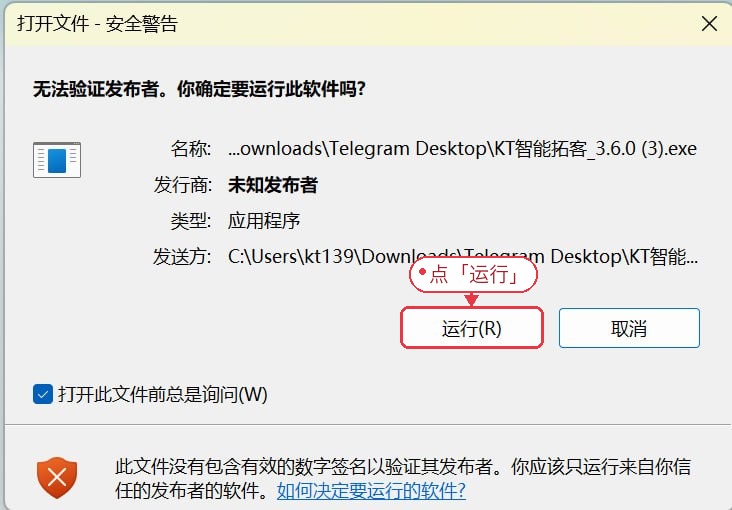
What if Windows shows “Publisher could not be verified”?
If Windows shows “Open File - Security Warning / Publisher could not be verified,” follow the step below.
Security warning: only run an installer downloaded from this official page after verifying its digital signature or published checksum. If Windows cannot verify the publisher, cancel and obtain the latest signed package.
Verify the installer
Confirm that the installer came from this official page and verify its digital signature or published checksum. If the publisher remains unverified, click Cancel and do not run it.
What if macOS shows "Cannot verify developer" warning?
On first launch, macOS may block unsigned apps. Follow the steps below and you can usually open KT within a minute.
Tip: Download the installer first, then follow this guide. If you see “was not opened” or “cannot verify”, don’t move it to Trash — continue with the steps below.
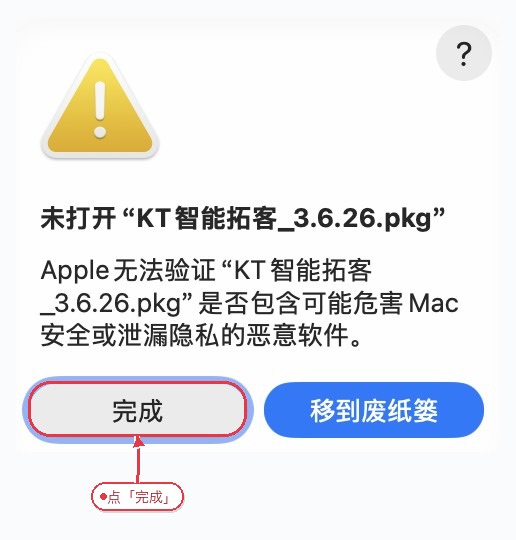
See the installer “was not opened” dialog
After double-clicking the package, if macOS shows that Apple can’t verify the installer, click Done to close the dialog. Don’t move it to Trash.
Open Privacy & Security
Go to System Settings → Privacy & Security, scroll to the Security section, and find the prompt that KT package was blocked to protect your Mac.
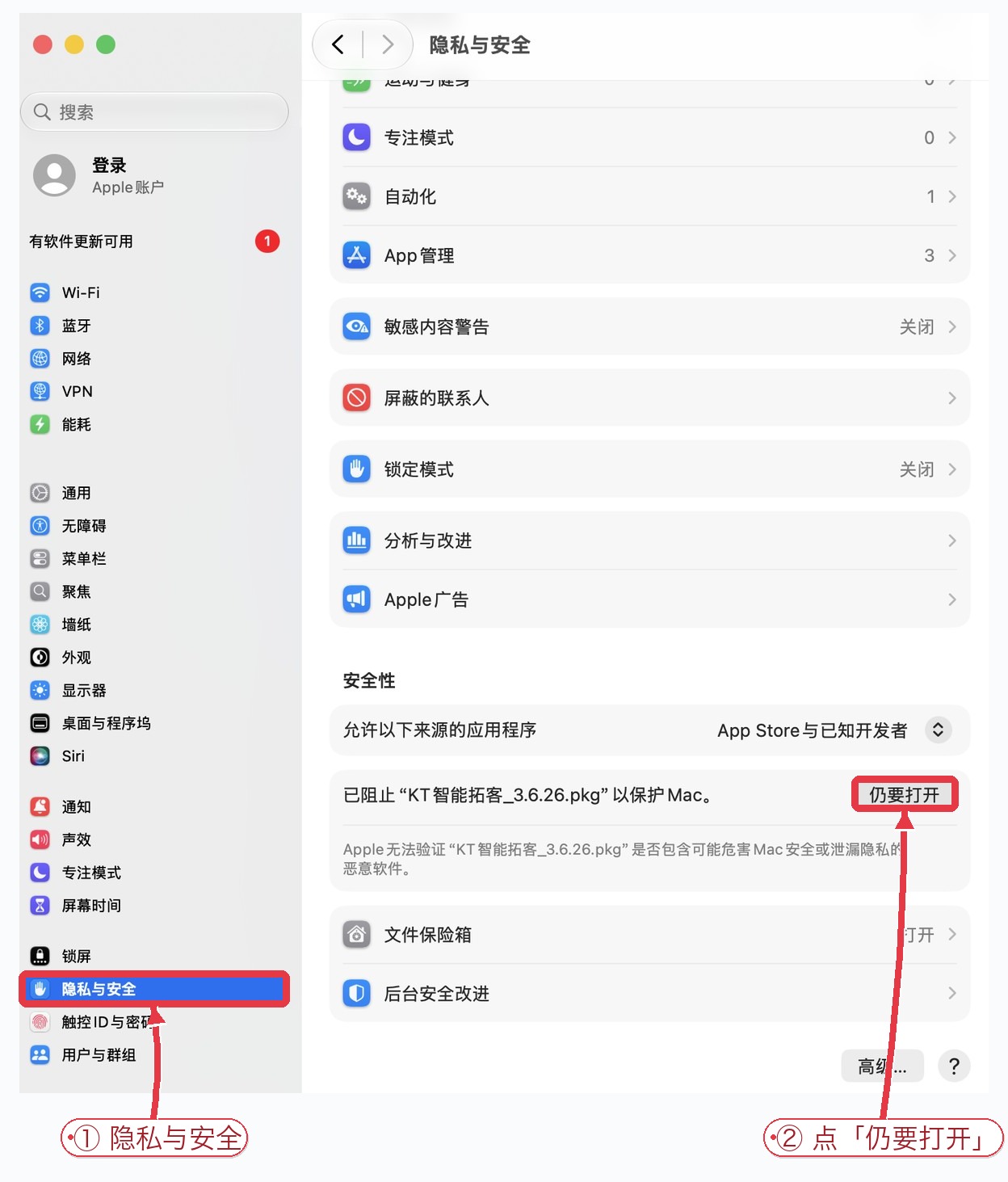
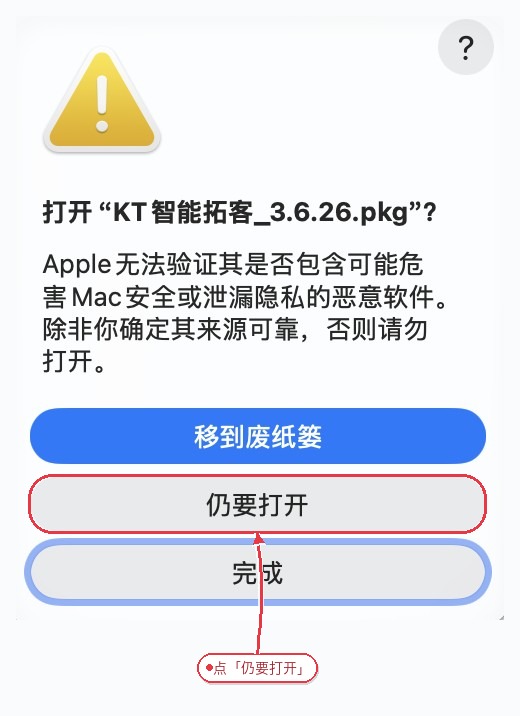
Click Open Anyway
In the security prompt, click Open Anyway. When macOS asks again, choose Open Anyway — don’t move the package to Trash.
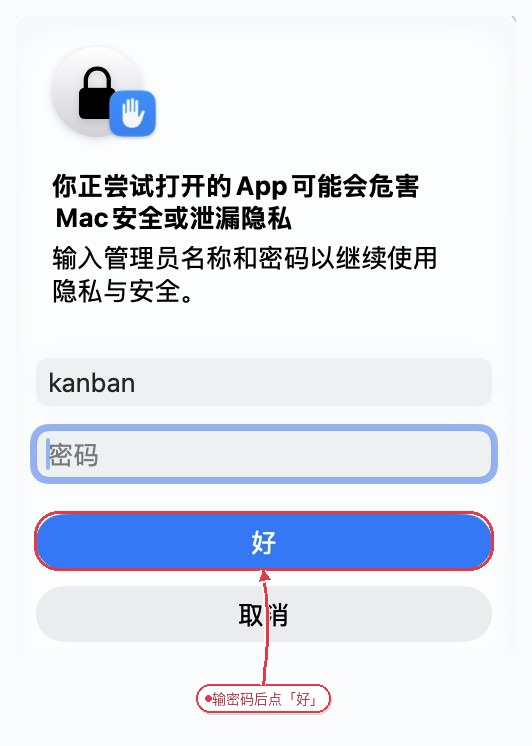
Enter admin password
Enter your Mac administrator name and password, then click OK to authorize. After that you can install and open KT normally.
What if the app fails to launch or crashes after install?
First, tell these two cases apart: 1) If you see “Abnormal exit detected / Submit diagnostic report”: the app has launched successfully; it only means the last session didn’t close cleanly. You can click “Submit diagnostic report” to help troubleshooting (includes crash logs, system info, and app version; no chat content), or click “Ignore” to continue. 2) If the app quits immediately and never opens: check that the OS is 64-bit and up to date; on Windows run as administrator, on macOS re-authorize security settings. Contact support if it still fails.
How do I update to the latest version?
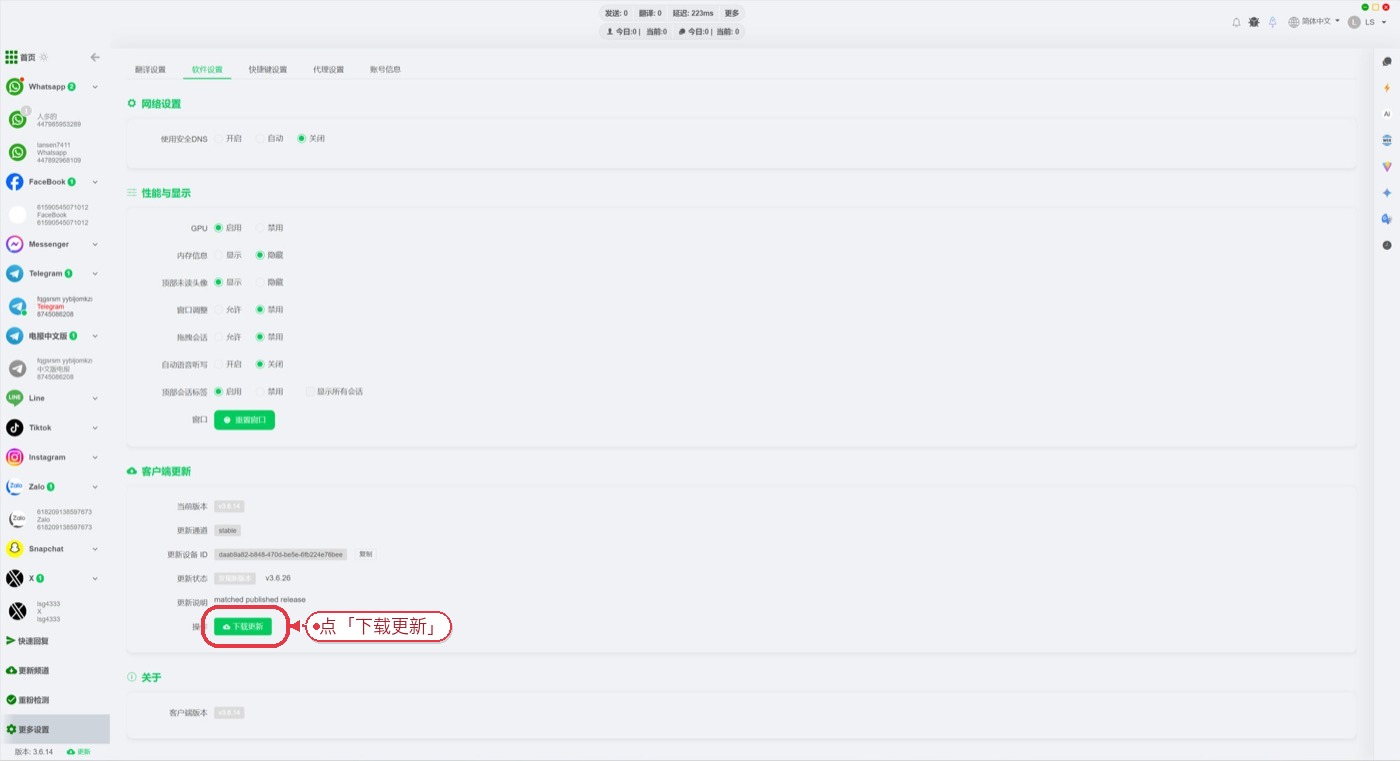
The client supports in-app updates. Open More Settings → App Settings, then use the Client Update section to check and install a new version.
Tip: The client will quit during install. Reopen it after installation finishes — your account data is kept.
Check and download the update
Go to More Settings → App Settings → Client Update. If Update status shows a new version, click Download update and wait for the download to finish.
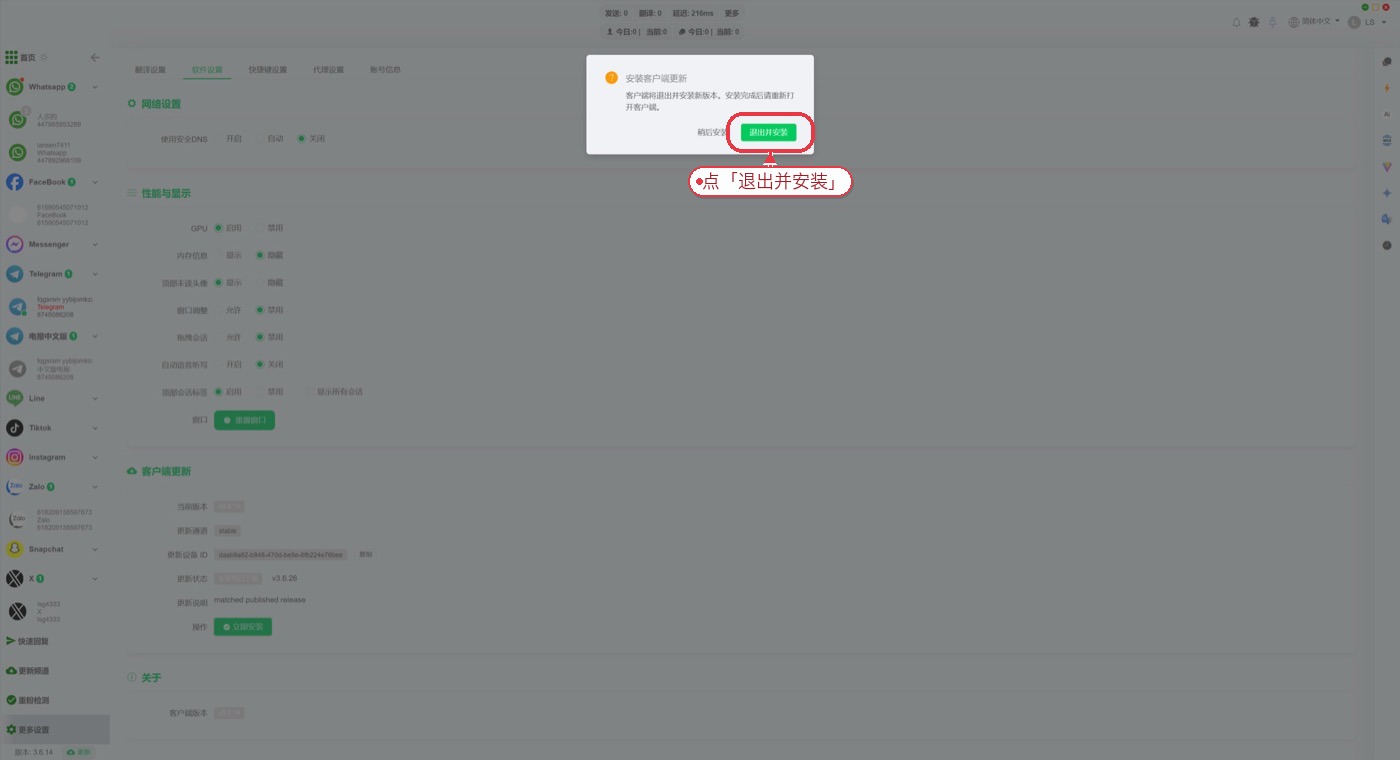
Quit and install the new version
After download, click Install now. In the Install client update dialog, confirm Quit and install. The client quits, installs the update, then reopen it when done.
Start Experiencing KT v3.6.26 Now
Download the client, register for a 3-day free trial, experience all cross-border prospecting features.
